
How recurring invoices work
Learn how recurring invoices work, how to set up billing blueprints, and when draft or auto-send is safer for predictable repeat work.
You bill the same client every month. The retainer, service, and standing agreement barely change, but every cycle still asks you to copy dates, numbers, recipients, and payment details.
Recurring invoices work by storing a billing blueprint and generating a new invoice on a defined schedule. The safest workflows keep the schedule separate from generated invoices, offer draft and auto-send modes, preserve run history, and stop when required details become invalid. For the product workflow, see recurring invoice software for freelancers.
This guide explains when recurring billing helps, how to evaluate software, and how to implement it without sending surprise invoices. It also shows how NeatInvoice handles blueprints, activation, generated records, and delivery.
What is a recurring invoice?
A recurring invoice is an invoice that repeats on a fixed cadence (weekly, bi-weekly, monthly, or yearly) for ongoing work or retainers.
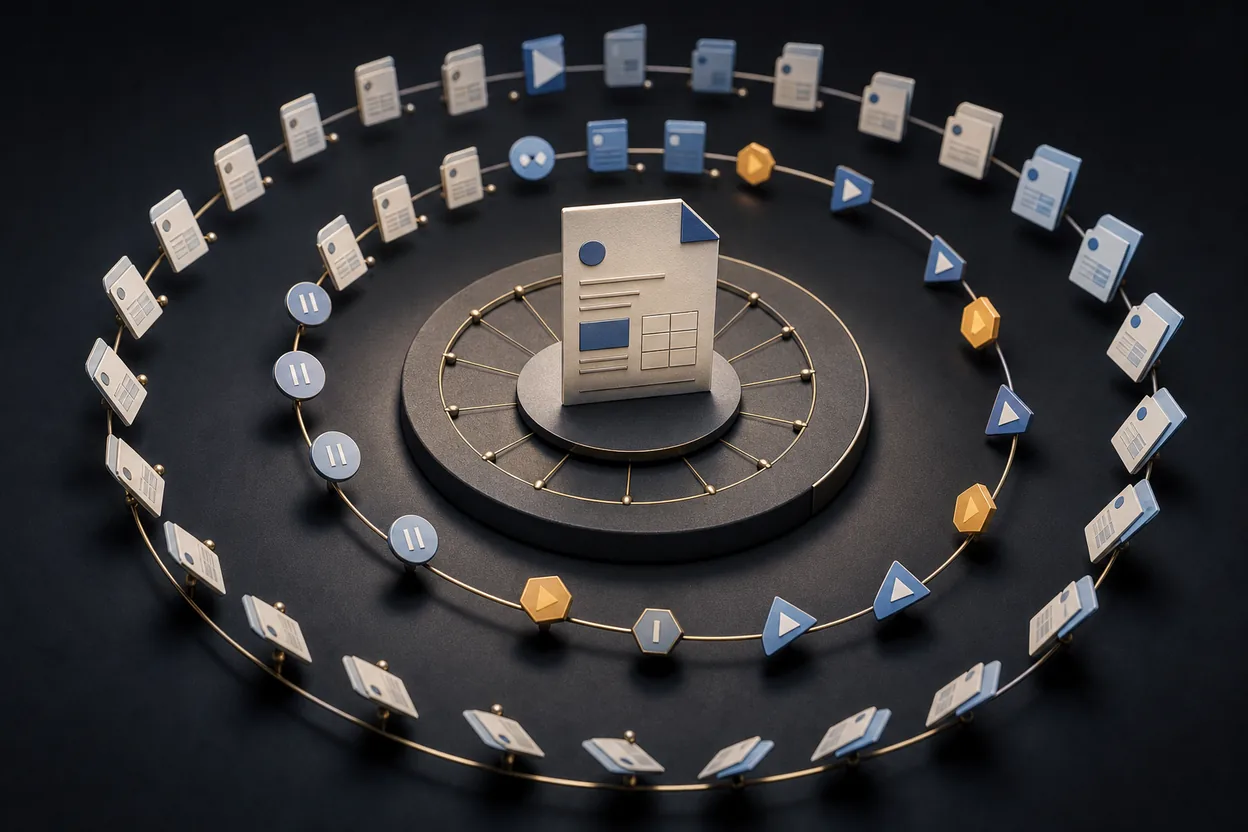
Unlike a one-off project invoice, a recurring setup has two layers:
- The schedule: when invoices are created, how they end, and whether they send automatically.
- The blueprint: the template content (client, line items, amounts, payment details) that each new invoice copies from.
Each time the schedule runs, the tool generates a new invoice for that billing period. That invoice is a real document in your library with its own number, issue date, due date, and status. It is not just a duplicate of last month's PDF.
Think of the blueprint as the master recipe. Generated invoices are the dishes you serve each cycle. Change the recipe and future invoices update; plates already served stay as they were.
Who should automate recurring billing?
Recurring invoices fit predictable, repeat revenue, not every project.
| Situation | Recurring billing fits? | Why |
|---|---|---|
| Monthly retainer (design, dev, consulting) | Yes | Same client, same scope, same amount each cycle |
| Hosting or maintenance fee | Yes | Fixed fee on a known schedule |
| Subscription-style access (coaching, membership) | Yes | Client expects a bill on the same day each period |
| Milestone project with three fixed payments | Sometimes | Use end-after-N-occurrences rather than open-ended monthly |
| Variable hours every month | Rarely | Amount changes; manual or semi-manual invoicing is safer |
| One-off deliverable | No | Send a single invoice when work is done |
If your amount changes every month based on hours logged, full automation can over-bill or under-bill. Many freelancers use draft mode (generate for review) in those cases, or keep variable work on manual invoices.
Manual recurring billing vs automation
Before software, recurring billing looked like this:
- Duplicate last month's invoice in a spreadsheet or Word template
- Update issue date and due date by hand
- Re-attach or re-send the PDF
- Track who paid in a separate sheet
It works at small scale. It breaks when you have multiple retainers, miss a month because you were on vacation, or send the wrong due date because you edited the wrong row.
Automated recurring billing moves the repeat work to a schedule:
| Manual approach | Automated schedule |
|---|---|
| You remember the billing date | The system creates the invoice on the date |
| Copy-paste errors on dates and amounts | Blueprint keeps content consistent |
| No audit trail per run | Each generation is logged |
| Easy to forget a client | Active schedules surface in your overview |
The goal is not to remove your judgment. It is to remove the boring, error-prone steps so you only intervene when something is unusual.
The building blocks of a solid recurring setup
Whether you use NeatInvoice, another tool, or a spreadsheet, these pieces matter.
1. Client and line items
Every generated invoice needs a clear bill-to party and at least one line item with a description. Vague rows like "Services" slow down client approval and accounting.
For retainers, one line is often enough: "Monthly design retainer, June 2026" with the fixed rate.
2. Due date (not just payment terms)
Due date is what drives collections, reminders, and cash-flow forecasts. Free-text payment terms like "Net 30" are useful on the document, but automation needs an actual due date field.
The invoice payment terms guide covers Net 7, Net 15, Net 30, milestones, and explicit calendar due dates.
A common pattern: set the blueprint issue date to today when you are building, then set due date 15 or 30 days out. The system calculates the same offset for each generated invoice based on that blueprint window.
Custom payment terms (for example "50% deposit, balance on delivery") do not automatically move the due date. For recurring work, keep a clear due date on the blueprint. Parsed terms like Net 15 or Due on receipt can sync due dates on manual invoices, but scheduled runs rely on the due date row.
3. Payment information
Generated invoices should include how to pay: bank details, Wise or PayPal links, Stripe checkout, or whatever you already use. Without this, you create invoices that clients cannot act on.
4. Frequency and first run date
Choose how often billing happens:
- Weekly: short engagements or trial periods
- Bi-weekly: payroll-aligned clients
- Monthly: the default for most retainers
- Yearly: annual licenses or maintenance contracts
The first invoice date is when the first generated invoice is issued. If you activate late, missed runs are not backfilled. NeatInvoice advances to the first scheduled date on or after today (in the schedule's timezone), then continues from there.
5. End condition
Open-ended retainers use never end. Fixed engagements can stop:
- After N invoices (for example a 6-month contract)
- On a specific date (for example through December 31)
When the end condition is met, the schedule moves to completed and stops generating. If you end schedule manually, it moves to cancelled. That is also terminal, with no further runs.
6. Delivery mode: draft vs auto-send
This is the biggest product decision:
Create drafts for review. Each cycle, a new invoice appears in draft. You check amounts, tweak copy, then send manually. Best when amounts sometimes change or you want a human gate before email goes out.
Auto-send to client. Each cycle, the invoice is marked sent, the live link is published, and the client receives email automatically. Best for stable retainers with a trusted client and valid email on file.
Auto-send requires a valid client email and a reply-to address (your sender email or account email). Without both, activation should block rather than fail silently on the billing date.
Draft and automatic delivery are established product patterns, not universal labels. Zoho Invoice documents draft, create-and-send, and create-charge-and-send modes, while Stripe documents scheduled invoice finalization and sending. Compare the actual behavior, review controls, and payment rails rather than relying on a feature name.
What happens when a schedule runs
On each due date, a background job (daily cron in most invoicing apps) picks up active schedules whose next run date has arrived.
A typical run:
- Validate the blueprint: client, line items, due date, payment info; for auto-send, valid emails.
- Create a child invoice: fresh invoice number, issue date = run date, due date = blueprint offset applied to that issue date.
- Set status:
draftif manual delivery,sentif auto-send. - Email (optional): live link in the message, not a buried PDF attachment.
- Advance the schedule: increment generated count, compute next run date, respect end conditions.
- Log the run: success, skipped, or failed for your audit trail.
If validation fails at run time, a well-built system pauses the schedule and records why, so you are not silently skipping a month without knowing.
On NeatInvoice, downgrading from a paid plan pauses active recurring schedules (and the daily billing job skips non-paid accounts) until you upgrade again, so you are not assuming automation is live when it is not.
Blueprint edits vs past invoices
This trips people up the first time they use recurring billing.
Editing the blueprint (the schedule template) affects future generated invoices only. Raise your retainer rate on the blueprint and next month's invoice reflects it. Last month's paid invoice stays unchanged.
Editing a generated invoice affects that invoice only. Mark one occurrence paid, change a line item for a one-off discount, or void a single month. The schedule keeps running until you pause or cancel it.
Status changes on a child invoice do not flow upstream to the blueprint. Blueprint status is about the schedule (active, paused, completed, cancelled), not draft/sent/paid on individual occurrences.
Pause, resume, activate, and cancel
Healthy recurring products separate configuration from live billing:
New schedules start paused until you explicitly activate. That gives you time to finish the blueprint, set frequency, and review the checklist without an invoice firing before you are ready.
Activate turns on automated runs. A readiness checklist should cover client, line items, due date, payment info, and (for auto-send) email fields.
Pause stops future runs but keeps the schedule and history. Use this for client holidays, project gaps, or while you rework the blueprint.
Resume restarts from the next valid run date. The same readiness rules apply. You cannot resume with a broken blueprint.
Cancel or end schedule is terminal (cancelled in NeatInvoice). The UI label is End schedule. Use Pause instead if the retainer may resume later.
If you edit an active blueprint and remove something required (due date, payment block, client email on an auto-send schedule), the schedule should auto-pause and tell you what to fix. That is safer than sending broken invoices on autopilot.
Common mistakes (and how to avoid them)
Forgetting to activate
A paused schedule with zero generated invoices is still in setup. Nothing bills until you hit Activate and the checklist is complete.
Assuming payment terms replace due dates
"Net 30" in a text field does not help cron or reminders if there is no due date row. Set the due date explicitly on recurring blueprints.
Auto-send without a valid client email
You might discover this on the first run, or hopefully at activation. Add the billing contact's email before enabling auto-send.
Changing last month's invoice instead of the blueprint
Need to raise your rate? Edit the schedule blueprint, not the paid invoice from March. Otherwise April's auto-generated invoice may still use the old amount.
Treating generated invoices like one-offs
Each generated occurrence is a real library row in your invoice library - with its own number, status, and history - not a throwaway duplicate of the blueprint.
Variable amounts on full auto-send
If hours change every month, use draft mode or manual invoices. Full auto-send is for stable amounts you are willing to stand behind without a review step.
Creating a second schedule for the same invoice
NeatInvoice blocks duplicate live blueprints for the same invoice number or source invoice. End the old schedule or edit the existing blueprint instead of creating a parallel one.
How to evaluate recurring billing software
Use this checklist when comparing tools:
| Capability | Why it matters |
|---|---|
| Blueprint separate from generated invoices | Edit future billing without rewriting history |
| Draft and auto-send modes | Match stable retainers vs variable work |
| Explicit activation step | No surprise invoices while you are still configuring |
| Run history / audit log | See what generated, emailed, or failed |
| Auto-pause on invalid blueprint | Fail safe, not fail silent |
| Live link + optional email | Clients open in browser; you see views |
| Forecast in finance overview | Know expected income from active schedules |
| Payment reminders on sent invoices | Backstop after due date without manual chasing |
Heavy accounting suites bundle recurring into larger products. Lighter invoicing workspaces often give you schedules without the complexity of double-entry books. That is a better fit if billing repeat clients is the job, not running a full ledger.
For service examples, see how landscaping maintenance and plumbing maintenance separate stable recurring charges from visits, parts, weather, and other details that still need review. The cleaning service invoice template shows the same distinction through service periods, visit frequency, and approved add-ons.
Software category matrix
| Category | Best when | Watch for |
|---|---|---|
| Focused invoicing workspace | You need schedules, links, views, and follow-up | Accounting remains in another system |
| Accounting suite | Invoices must feed books and reconciliation | More setup and plan limits |
| Client CRM | Contracts, scheduling, and payments share one clientflow | Broader price and workflow |
| Payment subscription platform | Automatic charging is the main job | Processing fees, failed charges, and tax scope |
Recurring invoice generation is not the same as automatically charging a card. Confirm whether a tool creates a payment request, sends it, charges a stored method, or combines those actions. NeatInvoice creates and tracks invoices but does not process payments.
For a broader product comparison, see best invoicing software for freelancers. To evaluate a concrete recurring-invoice workflow, see recurring invoice software for freelancers.
How recurring billing works in NeatInvoice
NeatInvoice treats recurring as part of the invoicing workspace, not a bolt-on in separate accounting software. Recurring schedules are available on Solo and Studio during an active trial or paid subscription.
Create a schedule in two steps
- Fill the blueprint on the canvas: client and at least one line item. The invoice editor is the blueprint; what you see is what future invoices copy.
- Schedule and delivery: frequency (weekly, bi-weekly, monthly, yearly), first invoice date, end condition, and delivery mode.
New schedules save as paused until you activate.
Activation checklist
Before Activate, NeatInvoice verifies:
- Client on blueprint
- At least one line item
- Due date on blueprint
- Payment information (bank details or payment links)
- For auto-send: valid client email and sender/reply-to email
The configuring banner shows each item with a done state, so there is no guessing what is missing.
Delivery modes
- Create drafts for review: new invoices stay in draft for you to send when ready.
- Auto-send to client: marks sent, publishes the live link, and emails the client with the secure link (no PDF attachment).
Recurring emails use the same delivery path as manual sends, with idempotent logging so duplicate runs do not double-email.
When billing runs
A daily job processes due active schedules:
- Creates a child invoice linked to the schedule and occurrence date
- Applies blueprint totals with a new invoice number (collision-safe)
- Sets issue date to the run date and due date from the blueprint payment window
- Sends email when auto-send is on
- Advances next run date and records the run in run history (success, failed, or skipped)
If the blueprint becomes invalid on an active schedule, NeatInvoice auto-pauses and surfaces what to fix. If email send fails on auto-send, NeatInvoice rolls the invoice back to draft (unpublished) and pauses the schedule so you can fix and resume.
Library and overview
- Recurring tab in the workspace library lists schedule blueprints with status, next run, and generated count.
- Generated invoices appear in the Invoices list with a Generated badge. Each one is editable on its own.
- Finance overview shows recurring income from active schedules: amounts scheduled in the next 30 days, plus a next 90 days expected total when applicable, alongside overdue AR and coming-due invoices.
Child invoice scope
Open any generated invoice and you will see that edits (including status) apply to that invoice only. The schedule keeps running until you pause or cancel. Open the blueprint to change what future cycles look like.
You can add payment reminders on each sent occurrence in Share - up to three stages after the due date, with copy you can edit per stage. Reminders are not copied automatically from the blueprint. Set them on the generated invoice after auto-send, or on drafts you send manually. Reminders require a due date and sent or overdue status.
A simple monthly retainer workflow
Here is a practical end-to-end example:
- Create a workspace client with name and billing email.
- Start a new recurring schedule from the workspace + New menu or Recurring tab.
- On the blueprint: one line item ("Monthly brand design retainer"), your rate, due date 15 days from issue, bank details or Stripe link enabled.
- In schedule settings: Monthly, first invoice date = the 1st of next month, end never, delivery auto-send.
- Review the checklist and Activate.
- On the 1st, the client receives email with a live link; Overview shows the new sent invoice and updates recurring forecast.
- When they pay, mark paid on that occurrence. The schedule does not need to change.
- When the retainer ends, end schedule on the blueprint.
If one month needs a discount, open that month's generated invoice only. Do not rewrite the blueprint unless the new rate applies going forward.
For the commercial agreement behind the schedule, including unused hours and overage rules, use the retainer invoice guide. If a generated invoice remains outstanding, follow the documented sequence in unpaid invoice reminders.
Implementation checklist
- Confirm the client expects recurring billing
- Define the service period and stable amount
- Put an explicit due date on the blueprint
- Add payment details and the correct recipient
- Choose draft mode for variable work
- Test one generation before relying on auto-send
- Keep the accepted agreement outside the invoice record
- Review run history after the first cycle
- Pause the schedule during disputes or scope changes
- Reconcile payment on each generated invoice
Frequently asked questions
How do recurring invoices work?
Is a recurring invoice the same as a subscription?
Should recurring invoices auto-send?
Does editing the blueprint change old invoices?
What happens when a client pauses a retainer?
Bottom line
Recurring invoices are how repeat revenue stops depending on your memory. The right setup (clear blueprint, explicit due dates, payment details, and a delivery mode that matches how much you trust automation) turns monthly billing from a chore into a background process you only touch when something changes.
In 2026, you do not need enterprise accounting software to automate retainers. You need a schedule that respects the difference between master templates and real invoices, fails safely when data is incomplete, and shows expected income before the money lands.
Sources and related guidance
References used to support this page in . Rules and product details can change; check the linked source for current, jurisdiction-specific information.
- Recurring invoice preferences by Zoho Invoice
- Schedule invoice finalization by Stripe Documentation